
Haley Allen, Sr. Director, visionOS Program Management, Apple
At WWDC 2025, "spatial browsing" was introduced. They said "simply select spatial browsing to transform supported articles", however they did not explain what it means to be a "supported article". I've done some experimenting to try to work out what conditions are required in a website to enable this feature. Of course, this is a new feature and is likely to change. I'll try to keep this article up to date as it evolves.
Firstly, to activate spatial browsing, just select the new "Spatial Browsing" button in the location bar:

This will create a more immersive experience for any web page. For most pages, though, you will see exactly the same as before, but with your environment immediately around the browser blurred out. To maximise the spatial browsing experience, there are two areas which need attention: the page structure, and the type of images you use.
Page Structure for Spatial Browsing
The spatial browsing experience is very similar to "reader" mode: it removes all the clutter and concentrates on the main part of the page. The browser uses a number of clues from the page structure to know what is the main content.
In the page header, you must specify an object graph type of "article" and a title:
<meta property="og:type" content="article"/>
<title>How to Support Spatial Browsing</title>
The main content on the page should be enclosed in an <article> element. Multiple <article> elements should be avoided. At best, subsequent sections will not appear during spatial browsing. At worst, the entire page might not be recognised as supporting spatial browsing at all and just render the same as normal.
While fonts and emphasis are likely to remain, much of the CSS styling will not. This is because the rendering used for spatial browsing is intended to allow you to just concentrate on the content itself, and not on any fancy element arrangements, etc, much as "reader" mode does.
Any "floating" or "relatively" placed items are likely to be completely removed. This can be seen in my About page where the photo is styled to "float" to the left, enabling the text to fill in to the right. This image is not displayed in either the "reader" mode or in spatial browsing. Similarly, the section at the top of this article containing the publication date doesn't show in "reader" mode or spatial browsing since it "floats" to the right.
Note that this will not guarantee that your page renders as expected in spatial browsing as there may be other CSS influences which affect things. Try to keep the page structure as simple as possible in order to debug things. Many modern websites have vast nestings of <div> elements in order to apply lots of subtle styling. This can make it very difficult to work out what might be affecting the way something is displayed.
The following is a minimal example of a page which works. One of the "preamble" or "postamble" can be omitted, but not both.
<!DOCTYPE html>
<html lang="en">
  <head>
    <meta property="og:type" content="article"/>
    <title>How to Support Spatial Browsing</title>
  </head>
  <body>
    <article>
      Preamble
      <img style="width: 100%;" alt="Spatial browsing demo" src="WWDC-2025-spatial-browsing.png" />
      Postamble
    </article>
  </body>
</html>
Converting Images to Spatial Scenes
When turning on spatial browsing, if the page is recognised, then certain images will be automatically transformed into spatial scenes. There are a few criteria which will determine if this occurs.
Firstly, the image must not be "floating". As described above, this is likely to mean the image won't even appear at all when spatial browsing is enabled.
The aspect ratio needs to be between 2:1 and 1:2. I expect that they decided that if an image was wider than 2:1, then it might be a banner and it wouldn't be reasonable to try to make that sort of content into a spatial scene. Anything taller than 1:2 is pretty thin for an ordinary photo and so is probably also considered to be more likely some sort of display element and also not suitable for transforming.
An image needs to be at least 600 pixels wide. Presumably anything smaller is considered too low a quality for the transformation to produce good enough results.
There is one other thing which will determine if the transformation occurs and it is much less tangible than the previous factors. It seems that the algorithm makes some sort of assessment of the image content to see how suitable it would be as a spatial scene. It is not perfect, though.
The following images are all screenshots taken from the video of the WWDC 2025 Keynote and are identical except for their content. These three are transformed into spatial scenes:
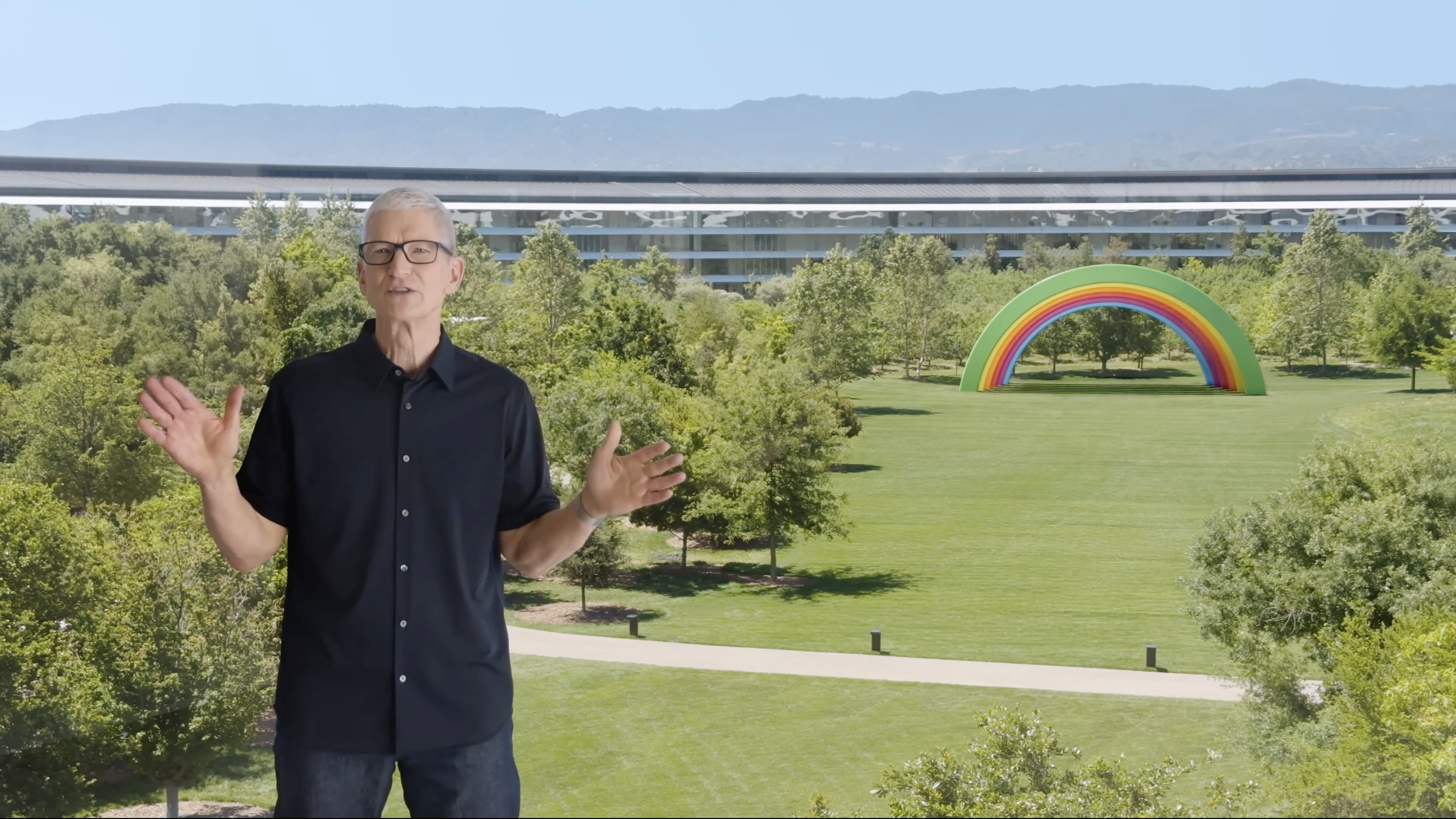
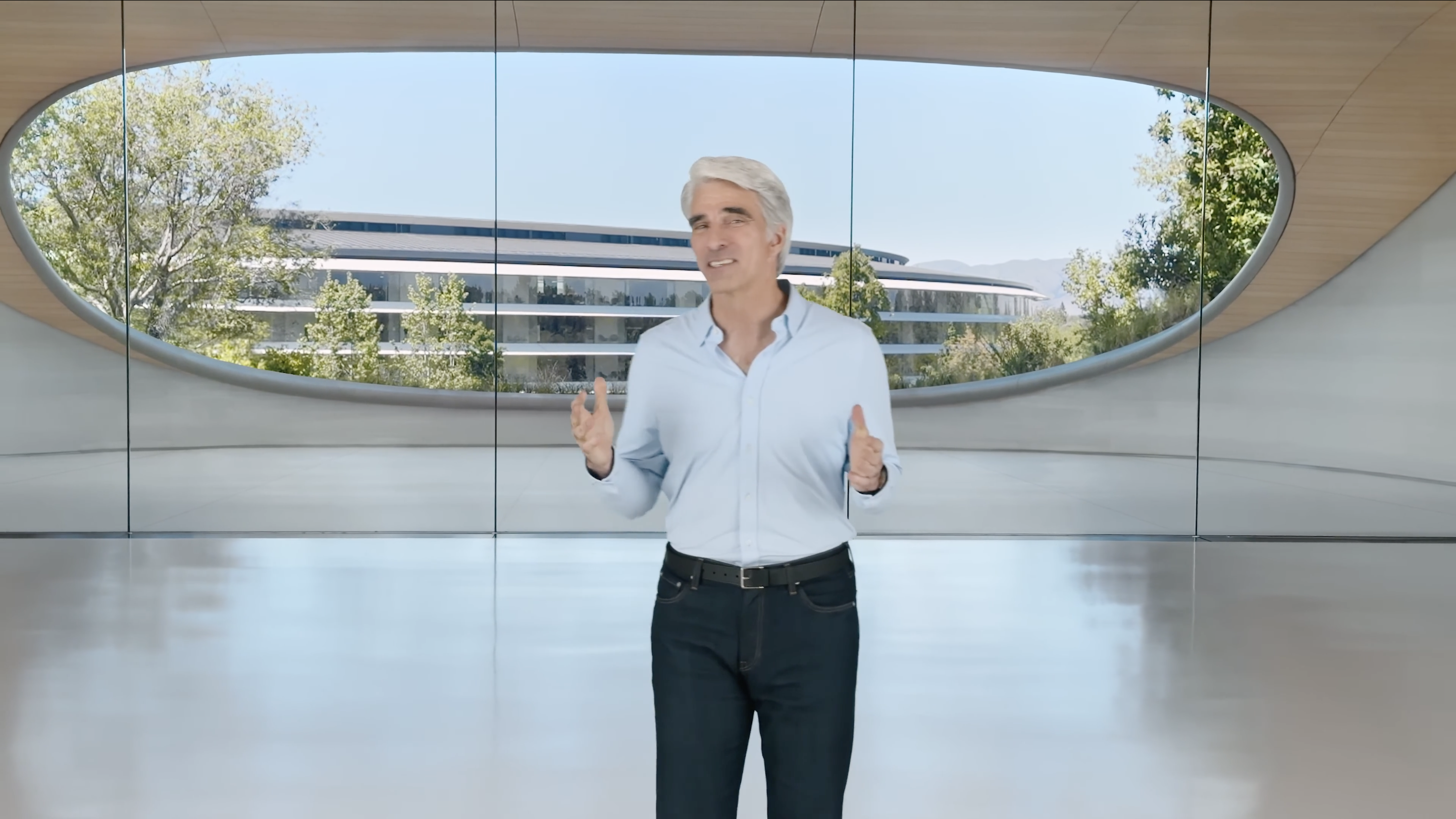

However, these images do not transform:
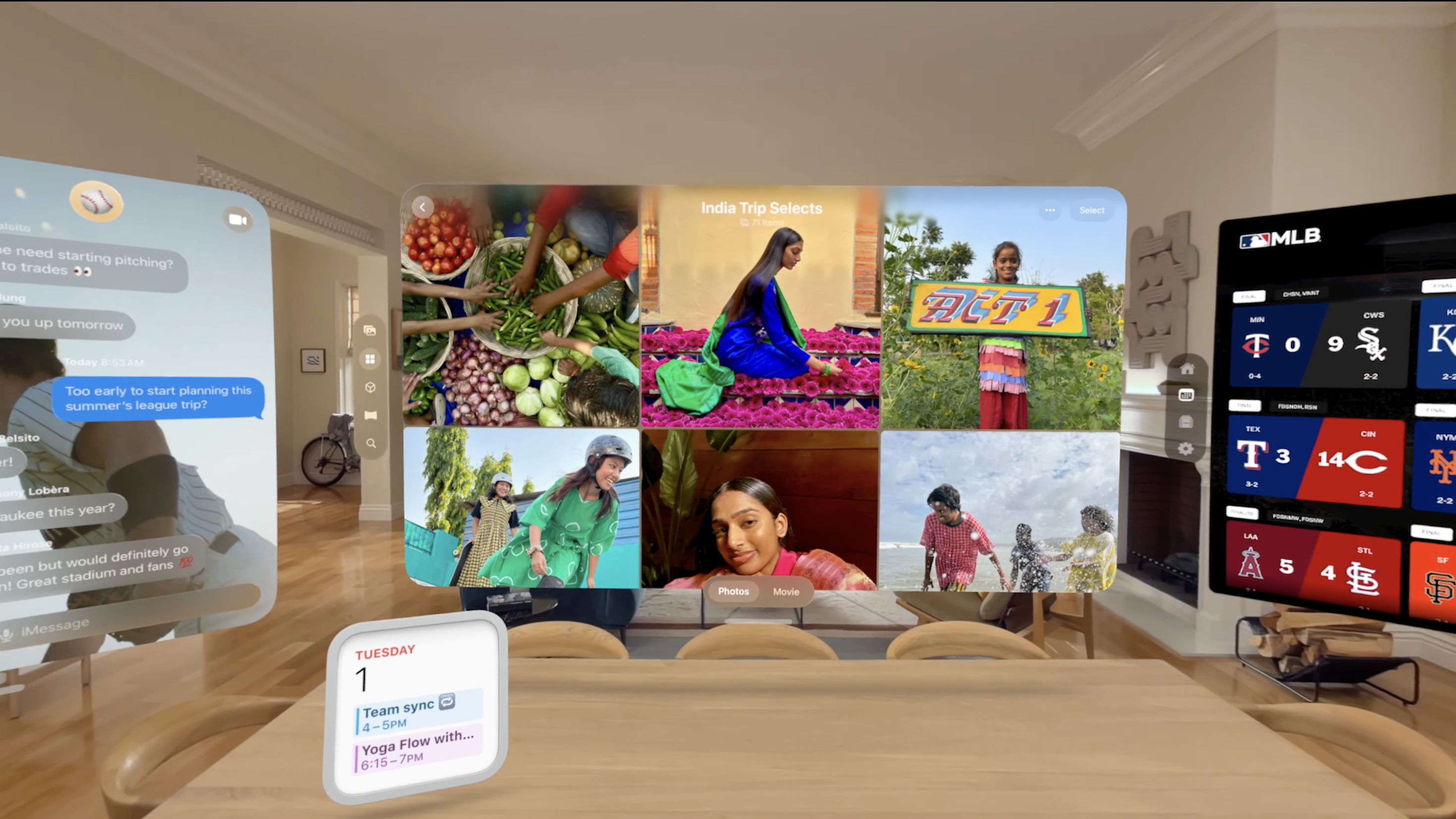

It is understandable that these might be considered too "abstract" to be worth processing as spatial scenes. It is not clear why the third image above is transformed, though. Clearly, if you want your images to work, you may need to try different compositions in order to guarantee success!
Hopefully, this has given you some ideas about what might work. Good luck creating your own spatial content!
[Edit: the algorithm which determines if an image is suitable for transforming into a spatial image changes slightly with each OS release so you will need to check after each update to see if images you use work or not...]